Author: Jukka Niiranen

  • Upgrade gotchas: Outlook client for Dynamics CRM 2011

    Last weekend I finally did my first installation of the RTM versio of CRM 2011 Outlook client onto a machine with Outlook 2010. I had previously only worked with the Outlook 2007 client version, which is lacking a few nice features in the UI, as described in my earlier post.

    I came across a few issues that might cause problems in the installation process, so I decided to link the relevant KB articles and other related content into this blog post to help you save some time when upgrading to the latest version of Microsoft Dynamics CRM on your client machine. I’m using CRM Online here, so some things may differ from the on-premises client version, which no longer has a separate client version, but of course the authentication methods do differ.

    Before you begin: go with 32-bit

    Yeah, I’m sure most of the new business laptops nowadays come with a 64-bit (a.k.a. x64) version of Windows 7. Nevertheless, you should treat 64-bit applications with caution. Why? Well, it’s a bit like with IPv4 vs. IPv6. Everyone knows the old world as we know it is coming to an end, but there simply isn’t a concrete enough reason for developers or companies to go “all in” with the 64-bit apps.

    With Microsoft Dynamics CRM 4.0 the situation was quite nasty, as there was not and there will not be support for the 64-bit versio of Microsoft Office. You simply had to tell the users to “downgrade” their Office, which is not the most optimal starting point for getting someone to adopt a new application such as Dynamics CRM. Now with the arrival of Dynamics CRM 2011 we do in fact have an x64 client for Outlook, so everything should be in order, right? In theory, it is, but if you’re planning to install any fancy RIA apps from the Dynamics Marketplace into your CRM 2011, you should read this blog post from Customer Effective. That’s right, Microsoft hasn’t releases a 64-bit version of the Silverlight add-on for Internet Explorer, which leads us into the following situation:

    KB2500373: Microsoft Silverlight web resources cannot be viewed in the 64-bit version of the Microsoft Dynamics CRM Client for Microsoft Office Outlook

    It’s a fact of life: the world is not 64-bit just yet. With the Office applications there’s not likely to be a significant performance boost from using the x64 version, so take the easy way out and just install the 32-bit Office 2010. Let’s revisit the topic when we all have Windows 8 and Office 2013, shall we?

    Favorite folders no more

    KB2494600: There is no option to add Microsoft Dynamics CRM entities to favorites in Microsoft Office Outlook 2010

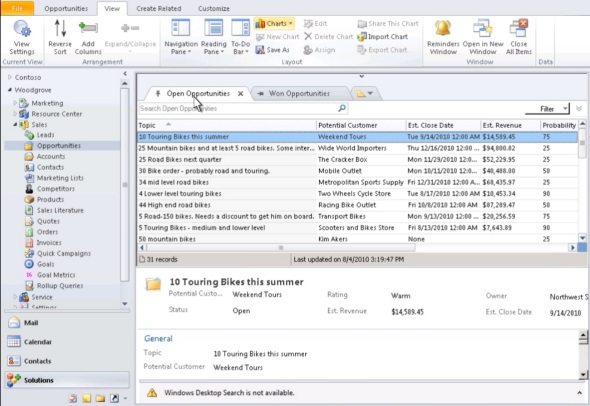
    The Solutions Module is a new feature that has become available in Outlook 2010, as described here in the MSDN library article. It allows developers to integrate their applications directly into the Outlook navigation pane, which is what Dynamics CRM 2011 Outlook client is doing to achieve the seamless integration into the native Outlook navigation items.

    What’s the downside? Unfortunately the add-on solution folders cannot be added to the Outlook favorite folders group. Bummer. This was one of the first things I always instructed people to do when training them on how to use Dynamics CRM. There’s no better way to drive CRM adoption that getting the list of the company’s accounts and contacts to be available right below the Outlook inbox folder, where most people start their day at the (MS) office. Even though the CRM folders are now more visual and available under the CRM navigation pane tab, there’s still likely to be tens of entities visible for most CRM users, out of which they typically access just 3-4 most popular ones. I, for one, hate navigating through hierarchical folders that require you to expand them to see the what’s hidden on the next level, so always visible one-click navigation is how I prefer to arrange my working environment, be it SharePoint workspaces or CRM menus in Outlook.

    Following the instructions in the KB article, you can achieve the old favorite folders functionality also in Outlook 2010, but this will require you to disable the Solutions Module. Which, if I’ve understood correctly, will again turn the flashy CRM folder icons into the generic folders that we see in Outlook 2007 or Outlook 2003. Guess we’ll just have to figure out which is a bigger loss for the end user experience and make a choice, until there is a feature enhancement available for the Outlook 2010 Solutions Module (I hope there’s no technical limitation on why this couldn’t be implemented in a future service pack).

    Clashes with Windows Live Essentials

    KB2498892: Unable to Configure the Microsoft Dynamics CRM Client for Outlook against Dynamics CRM Online

    Seems like the Windows Live ID authentication in CRM Online has some issues with the “consumer products” for Windows Live. This might not be a big issue in big corporate environments with locked-down client machine configurations that don’t allow using consumer targeted services such as Hotmail or Skydrive. However, as Dynamics CRM Online is clearly making the former enterprise level applications like Customer Relationship Management suites available to even the smallest organizations with its low monthly cost per user and ease of deployment, there’s likely to be more and more users who’ll be transitioning from Microsoft’s consumer product lines to the new cloud-based business product lines, such as CRM Online and Office 365.

    Basically you’ll need to run a repari install on the Windows Live ID Sign-in assistant or Windows Live Essentials 2011 to make it compatible with the Outlook client for CRM Online, which is also using Windows Live ID to connect you to the CRM server. That should do the trick.

    But wait, isn’t Dynamics CRM Online a business product? Why is it using the WLID authentication method meant for the consumer products? For comparison, here’s an aswer from Allen_MSFT on the Office 365 FAQ to a question regarding weather using Office 365 will require WLID.

    “Re Windows Live ID, you don’t need a Windows Live ID to use Office 365 or to use your Windows Phone 7 with Office 365.  Windows Live services are for consumers, so they are not linked within the Office 365 portal.”

    Indeed. I’m waiting for the day when also Dynamics CRM Online will be migrated over to the new Microsoft Online Services Delivery Platform, which will hopefully give us better tools for managing CRM user accounts and authentication.

    Missing Outlook ribbon after CRM client installation

    KB2494581: The Outlook and CRM ribbons disappear from Microsoft Outlook when you use the Microsoft Dynamics CRM Client for Microsoft Office Outlook

    I had this one happen to myself, since I had been using a previous beta version of the CRM 2011 client on my machine. I had uninstalled both Office and CRM, but there still remained a few lines in the registry that needed to be removed to get the Outlook ribbon to reappear.

    I have to tell you, Outlook 2010 really looks naked when the ribbon is gone (not just hidden). I’m not sure if there even was a way to do any basic Outlook operations like sending emails with the ribbon completely blank, so I started googling around immediately and came up with the instrcutions that pointed to the following steps required to restore the ribbon:

    • Run Regedit.exe
    • Locate the HKEY_CLASSES_ROOT\TypeLib\{2DF8D04C-5BFA-101B-BDE5-00AA0044DE52} key
    • Delete the 2.4 key that’s found under it. It’s not needed anymore, there should only be 2.5
    Update Nov 9th 2011: Since this appears to be quite a popular post on my blog, I decided to append this information here. Today I was creating a new Windows user profile on a PC that already had the CRM 2011 Outlook client installed on a different user profile. When launching Outlook for the first time as this user, the ribbon was missing from the CRM menus (not the whole Outlook as in the aforementioned case), even though everything was working fine for the previously configured user account. In this particular occasion the client was linked to a CRM Online organization which had received the R7 update (a.k.a. Q4 2011 Service Update), but the Outlook client was still on Update Rollup 3 level. After I deployed Update Rollup 5 on the machine and rebooted, the ribbon was restored for this new user profile. So, be sure to check that the client and server hotfix levels match if you encounter a ribbon display problem.

    Reading pane always shows the contact layout

    Dynamics CRM Deployment Forum: CRM 2011 reading pane error in Outlook 2010

    Unfortunately this one doesn’t have a knowledge base article or a fix yet. I encountered this issue briefly when installing the Beta version of CRM 2011 Outlook client. Back then, all it needed was a reboot and the reading panes and icons were restored. With the RTM version of CRM 2011 client, the issue is more persistent. Each and every CRM entity appears as if it was a contact, presented in a business card layout that only contains the entity primary field (name) and not any other data. Click the image below to see an example of the account record shown as a business card with the contact icon.

    Update Nov 10th 2011: Thanks to Wimco’s post on Dynamics CRM Forums, I was finally able to fix the reading pane layout problem on my PC. I simply uninstalled the Office 2007 Primary Interop Assemblies, after which I also applied the latest Update Rollup package and voilá: the reading pane now shows the fields specific to each entity.

    Further update, March 23th 2012: The EMEA Dynamics CRM Support has published an article, where they suggest another fix for the Outlook client preview pane problem. Apparently an existing DisableFormRegions registry key can cause the contact form to be shown instead of the correct entity form.

  • Dynamics CRM 2011 Walkthrough Part 2: another 100+ slides of new features

    Four weeks ago I released the Part 1 of my Microsoft Dynamics CRM 2011 Walkthrough slides and now it’s time for Part 2: Solution & System Management. Thank you all for the positive feedback from the first part, much appreciated. 🙂

    While the first slide deck was focused on how the new CRM 2011 features look like from the system end-user perspective, this time I have taken a look at the toolset available for system customizer, administrator or solution developer. Since I’m not a programmer, I’ll gladly skip the detailed discussion about CRM 2011 platform SDK enhancements (like WCF, OData, REST, LINQ and other hot acronyms) and leave them to the experts. Instead I’ve tried to cover featues that will have an effect on how to design and plan your CRM implementation or custom solution. Just like before, there are plenty of screenshots included, so that also users without access to a CRM 2011 Beta environment can preview how the features appear in the UI.

    The topics included in my presentation are as follows:

    • Customization menus
    • UI customization options
    • Solution management
    • Web resources
    • Processes (workflows and Dialogs)
    • Custom activities
    • Queue enhancements
    • Multiple forms per entity
    • Security features
    • Cloud services (CRM Online, Dynamics Marketplace, Azure AppFabric)
    • Upgrading from CRM 4.0
    • What’s not there in CRM 2011

    To summarize my core message after giving this presentation, the following would be my key takeaways from the slides:

    • Solutions and web resources will challenge both how you’ve built your CRM enhancements and how you have managed them, so invest time in planning your own processes before rushing into the operational tasks
    • Process automation / work management functionality is becoming an increasingly integrated part of the Dynamics CRM story and 2011 offers great improvements on that front, but remember that it’s still a work in progress area in many ways
    • You can’t escape the cloud, no matter which deployment model you or your customers are currently using, so at least familiarise yourself with what’s out there
    • Despite of the 500 new features in CRM 2011, there’s still plenty of room for add-ons and tweaks. The more the platform expands, the more we’ll demand from it

    That’s all the slides I have for now, but I’m sure there will continue to be lots of interesting features discovered and news items to discuss before Dynamics CRM 2011 comes out in January (RTW) / March (RTM) next year. I recommend you to keep an eye on the #CRM2011 hashtag on Twitter to follow the community buzz around the upcoming release.

  • Cloud XRM presentation from PDC 2010

    Andrew Bybee and Girish Raja had a pre-recorded session released on the PDC10 site, called Building Business Applications in the Cloud with Dynamics CRM Online. Not surprisingly, this presentation was revolving heavily around Microsoft Dynamics CRM 2011 and how it’s new features can help developers build XRM applications on top of Microsoft’s cloud architecture: Windows Azure, SQL Azure, AppFabric and, last but not least, CRM Online. You can view the full session here, below are a few takeaways from that session for the CRM crowd.

    The concept of XRM is probably pretty clear to most of us by know, but since PDC is not a Microsoft Dynamics event, an introduction was of course presented. The example used by Andrew here was the familiar HR scenario for processing job applications.

    In the next slide the MS pieces of the puzzle are laid over the solution components.

    With the native support for SharePoint integration in CRM 2011 (limited but extendable through SDK), drawing the document management box inside the XRM platform is already perfectly valid. ERP in the cloud is not a scenario actively promoted yet, but that’s where AppFabric and CRM 2011’s Azure aware plug-ins come into play, allowing the cloud apps to exchange data with on-premises apps. The whole Azure side of things is of course presented in less detail, as these are more of generic services rather than the XRM framework which Dynamics CRM 2011 tries to deliver us. Anyway, compared to the first application development platform talks around Dynamics CRM, it’s safe to assume that Microsoft’s cloud message will become inseparable from the XRM story and form a single Cloud XRM concept. In order to challenge SFDC and Force.com, the hybrid model and power of choice will of course remain in the marketing materials, but I’m sure no one wants to build a non-cloud demo for these kind of conferences anymore.

    (more…)

  • Greetings from Microsoft Convergence 2010 EMEA

    Continuing with the format introduced in 2009, this year’s Microsoft Convergence for the EMEA region was split into three locations: London, Prague and The Hague. Out of all the options, Prague fit our schedules the best, so that became our destination of choice to hear the latest news and buzz around Microsoft Dynamics products.

    With the fairly recent release of Dynamics CRM 2011 public beta, there was certainly a lot for Microsoft to present on the CRM front. Having been working with the product since CTP3 already, I wasn’t expecting too many surprises for myself in the CRM 2011 session contents. It’s still interesting to observe what is being said about the new release and how the customers and partners react to it. There is such a wealth of new, important features included in CRM 2011 (see my walkthrough slides for starters) that you can’t really construct the one right pitch for the product. You could say that there’s something for everyone.

    We saw the first glimpse of CRM 2011 during Kirill’s keynote, when Reuben Krippner showed a bit of Process Dialogs in the Dynamic Business demonstration. From there on, Reuben was a busy man, since he was giving demos in the next four consecutive CRM sessions on the agenda. Great job pulling it off, Reuben! Let’s hope Liverpool picks up their pace in the Premier League, so we can see some more of them in future CRM demos 😉

    Barry Givens held the last CRM session of the day, focusing on data visualization in CRM 2011. Not like we hadn’t seen the charts a few times already during the day, but hey, I always enjoy hearing Barry talk about his favorite topic i.e. analytics in CRM. While the out-of-the-box charts in CRM 2011 certainly do deliver value, you should really look at the broader picture of what the visualization features introduced in the new version truly mean in terms of customization and application design. The charts are actually one alternative method of navigation, due to their tight integration with grids and the drill-down capability. They can be embedded not only on grids but also forms (through sub-grids), bringing visualizations to every part of the CRM UI. Oh, and don’t forget to check out my post about editing the .NET Chart Controls for CRM 2011. Dashboards, on the other hand, are not just an item in the main menu but rather a new form type. By allowing flexible arrangement of embedded components like grids, charts and web resources, the dashboard forms might actually one day become the next generation UI for navigating in Dynamics CRM. You know, something for the future ahead of us when every modern web app must be built in RIA fashion, with Silverlight controls and what have you.

    (more…)

  • Turn the flat Dynamics CRM 2011 charts into 3D

    “We’ve got charts and dashboards!” Yes, ok, so that’s the common initial reaction to one of the most visible new features of Microsoft Dynamics CRM 2011. After playing around with the OOB charts in CRM 2011 Beta and building a few of your own personal charts with the simplified editor that’s available right in the end-user UI, the next reaction is likely to be “I wish I could do more with these charts“.

    The good news is: you absolutely can! The bad news? It requires a bit of XML editing. Now don’t go running away all scared, because it doesn’t take a .NET developer to perform some basic tweaks into the CRM 2011 charts. Heck, even I was able to figure it out after an hour of surfing around the documentation and blog posts on Microsoft Chart Controls for .NET 4.

    In this quick example I will take the a custom chart I built in the solution customization UI for CRM 2011 and inject some more parameters into it to enhance the presentation. The first thing we’ll need to do is select the chart you want to modify in CRM and click Export Chart to grab the XML definition for the chart.

    Open the XML file in the editor of your choice and have a look at the structure. Inside the <presentationdescription> tag you’ll find details about the <Chart> in question. What we’ll want to do in this example is insert more attributes inside the <ChartArea> tags. From MSDN Library we can find the following piece of information:

    The Chart control supports 3D charts. To use 3D charts, set the respective chart area’s Area3DStyle.Enable3D property to True.

    So, we know we’ll want to have the <Area3DStyle> tag in there with some parameters. In my chart we can apply the following addition into the chart definition XML:

    <ChartAreas>
    <ChartArea BorderColor=”White” BorderDashStyle=”Solid”>
    <AxisY IsLabelAutoFit=”False” TitleForeColor=”59, 59, 59″ TitleFont=”{0}, 10.5px” LineColor=”165, 172, 181″ IsReversed=”False”>
    <MajorGrid LineColor=”239, 242, 246″ />
    <LabelStyle Font=”{0}, 10.5px” ForeColor=”59, 59, 59″ />
    </AxisY>
    <AxisX IsLabelAutoFit=”False” TitleForeColor=”59, 59, 59″ TitleFont=”{0}, 10.5px” LineColor=”165, 172, 181″ IsReversed=”False”>
    <MajorGrid Enabled=”False” />
    <MajorTickMark Enabled=”False” />
    <LabelStyle Font=”{0}, 10.5px” ForeColor=”59, 59, 59″ />
    </AxisX>
    <Area3DStyle Enable3D=”True” LightStyle=”Realistic” WallWidth=”5″ IsRightAngleAxes=”true” />

    </ChartArea>

    Once we save the XML file and import it into a new CRM chart, the results will be the following:

    There you go, that’s all there’s to it. Or more specifically, that’s just the beginning of what the visualizations in Dynamics CRM 2011 are capable of. Have a look at the MSDN Library for Visual Studio 2010 on articles about using Chart Controls or browse the Chart Controls for .NET Framework forum for questions and answers on how to work with the charts available in CRM 2011. Downloading the Sample Environment for Microsoft Chart Controls might also be a good place to start.

  • Dynamics CRM 2011 Walkthrough: new features in 74 slides

    There’s no shortage of great blog posts that give you samples of the new functionality unveiled in Dynamics CRM 2011 Beta, as the buzz around the new version in the CRM blogosphere is just incredible right now (cheers to everyone who’s contributing to it). The problem is that this information is quite fragmented and simply all over the place for a person wanting to understand “what’s new and what does it look like?“. CRM 2011 videos and webcast recordings are also widely available already, but I often find this form of media quite difficult to consume effectively, as browsing and skipping through the long introductions and monologues can get tedious.

    What’s my answer then? Well, I’m a PowerPoint guy who likes to present his thoughts in slides, so this was the obvious format for me to start compiling my introductory materials to the brave new world that awaits for us when Microsof Dynamics CRM 2011 becomes available in a few months time. Slides are great for capturing screenshots of the UI and annotating them with callouts, so that’s been my main focus in the presentation; giving a clear view of the new features in a logical order.

    These 74 slides are actually just Part 1 of the deck I’ve been building. There’s simply way too much great new stuff (or limitations to be aware of) in Dynamics CRM 2011 to make a very brief introduction, so please bear with me while I walk you through the application.

    Part 1 is titled “end-user tools and features” and it’s split into the following topics:

    • End-user tools and UI enhancements
    • Outlook client
    • Form customization options
    • Auditing
    • Connections
    • SharePoint integration
    • Visualizations
    • Goals

    As you may have guessed already, the second part of the CRM 2011 Walkthrough (that’s still in the making) is going to focus more on behind the scenes changes that will be of interest to consultants and developers who are managing and building CRM/XRM solutions on top of the platform. The planned contents for part 2 is:

    • Customization menus
    • UI customization options
    • Solution management
    • Web resources
    • Processes (workflows)
    • Custom activities
    • Queue enhancements
    • Multiple forms per entity
    • Security features

    Stay tuned for updates and let me know if there’s any specific features in CRM 2011 that you would like to see in my slides.

    (Update: you can now find the part 2 slides in the following blog post: Dynamics CRM 2011 Walkthrough Part 2: another 100+ slides of new features)

  • Dynamics CRM 2011 performance improvements: CSS sprites

    Today’s business applications are mostly delivered through a web client that lives inside your browser. While Dynamics CRM has a “fat client” in the form of the Outlook components that can serve the CRM functionality even in an offline environment, Dynamics CRM itself is inherently a web application. The benefits of browser based application delivery are quite plain and obvious, but one must remember that there are still downsides to this approach. Everything relies on the client PC having a fast and reliable connection to the web server, which is not always the case. This particularly affects the mobile workforce or global companies with multiple offices spread around the world. Downloading the UI components involved in rendering a page of the web client will often mean loading tens of different image, script and other files, which requires good bandwidth and low latency to provide a smooth user experience.

    The user interface of Microsoft Dynamics CRM 2011 is much more graphical than in the previous versions, thanks to the new ribbon menu. While this does in my opinion make navigation inside CRM much more user friendly than the old text based menu hierarchies, it does make you wonder if all this comes with a price you have to pay in terms of slower page load times. Well, the good news is that Microsoft has also paid attention to the performance aspect and is now utilizing CSS sprites to render the default icons of the CRM UI.

    The image above is not a strange collage made by me, rather it is a single file called ribbon.png that is loaded when you access the Dynamics CRM through a web client. The image is a whopping 580 kb, but the good news is that you only need to load it once and then it will be cached by your browser. More importantly, each and every icon is rendered from this single image file, by displaying different parts of the image where a specific icon is needed in the UI.

    This same technique was already used in SharePoint 2010 and I’m glad to see it make its way also to Microsoft Dynamics CRM 2011. It will significantly reduce the amount of HTTP requests needed when loading a CRM page. Of course, the technique is only applicable to the default icon site. I’m not aware of any tricks for displaying a set of custom icons through this way, so adding a huge number of new ribbon options for your XRM application may come with a cost on the page loading performance.

  • Update Rollup 27 has been… Seriously, guys!

    Got a Dynamics CRM blog? Like to tweet about all things Microsoft Dynamics? You’re in luck, because Microsoft is providing you a steady supply of topics in the form of CRM Update Rollups (or UR’s if you prefer acronyms). Right now Microsoft Dynamics CRM 4.0 is on level 13 and will certainly continue to receive plenty more until the end of its support lifecycle. In January 2009 Microsoft stated that they aim to release a new update rollup every 8 weeks. If you multiply 13 x 8, that gives you 104 (two years), which means the actual release schedule is even tighter.

    When a UR comes out, you’ll be certainly well informed about it through the Dynamics CRM community, as this tends to generate a massive number of blog posts, tweets and retweets in celebration of the event. Having new hotfixes is of course important for anyone working with CRM, but has the whole UR phenomena gotten a little bit out of hand by now? The recent tweet by Jerry Weinstock from CRM Innovation highlights the issue perfectly:

    Let’s make one thing clear: there is no newsworthy content in just posting that “Update Rollup X has been released”. Nada. It’s like stating that a new copy of Wired is now available at the news stands.

    I’ve seen a countless number of practically abandoned Dynamics CRM blogs where the author no longer has the time or energy to produce original content. Yet they see it as their duty to keep posting UR notifications one after another. Wow, writing a blog has never been so easy! Ok, so you guys may have way more posts than I do, but do you really think you’re contributing to the CRM community in a meaningful way?

    I’m not saying that UR’s cannot be meaningful topics for a post, but you absolutely must provide some editorial content of your own, in addition to the KB article cut&paste. Tell about your experiences with the update, what was the reason why a particular hotfix was significant for you, what possible problems the UR installation may cause etc. Say something that not every one of us CRM geeks out there wouldn’t already know through their RSS feeds and Twitter lists.

    The amount of great information you can acquire just by following a Twitter hashtag like #MSDYNCRM is truly incredible and I don’t want to play down the value of an active Dynamics CRM community in any way. Quite the contrary, that’s the one thing we should all celebrate. All I’m asking is that the next time you see the news about a new UR, think for a moment how likely it is that all your followers and readers have already received the news through their own channels. And if you RT, at least put a funny twist on it!

    As for the UR release process in general, I propose that Microsoft registers the @UpdateRollup account on Twitter and we can all just start following it. Or better yet, replace the old Announcements section inside Dynamics CRM with a dashboard of all the official MS Dynamics CRM tweets in one convenient place. Of course in CRM 2011 we’ll already be able to configure those dashboards ourselves.

  • Outlook 2007 with Dynamics CRM 2011: will it blend?

    Perhaps the most visible improvement in Microsoft Dynamics CRM 2011 for the end user is the completely revamped Outlook client. Instead of merely wrapping the CRM web client UI inside the Outlook frame with stripped navigation and giving you the all important tracking buttons, the new Outlook client promises additional usability features over the web client. In the demos we’ve seen, things certainly do look pretty with Outlook 2010, but one question remains: will it blend with the previous versions of Outlook?

    Here’s a reminder of what Dynamics CRM 2011 Outlook client delivers with Outlook 2010:

    Many organizations have only recently gone through the trouble of upgrading to the “ribbonized” Office 2007 and training their staff to locate the familiar commands from the new ribbon icons and sections (or alternatively just shown how you can re-enable the old style menus in 2007). After all this effort, they may not feel like moving on to Office 2010 would really be the next priority item on the software upgrade list. Therefore it will be quite a probable path for companies to first upgrade to CRM 2011 before thinking about their Outlook clients. After all, CRM 2011 has backward compatibility all the way up till Outlook 2003, so why bother? Well, that’s exactly what I was curious to find out after receiving an invitation to CRM 2011 Online beta. I couldn’t risk my primary Outlook at work, so I decided to try this with my home laptop running 32-bit Office 2007 Enterprise on top of Windows 7 x64.

    (Personal confession time: yesterday I was faced with a PC that had Office 2003 installed. Upon trying to start making a few PowerPoint slides to create some very basic graphics, I was completely lost and decide to give up altogether after staring at the screen for half a minute feeling helpless, as I couldn’t figure out which menus to click. So there, that’s how quickly we can all unlearn the skills we used to once possess.)

    Getting started

    Microsoft Dynamics CRM Online will prompt the new users accessing the server through Internet Explorer with a friendly reminder that there is also an Outlook client available. I clicked on the link and received a nice little 5.5 MB installer, so off we go.

    Firing up Outlook after the installer gives a prompt to enter the CRM Online URL. Windows Live ID is verified and after that you’re connected to your CRM organization. Or should I say one of them, as the new Outlook client now supports having multiple organizations accessible through the same client UI. A very nice addition for all the XRM scenarios, but of course it comes with one major caveat: activities can only be synchronized with a single organization. So, you can only truly leverage the traditional Outlook capabilities with a single CRM organization. Maybe one day we’ll have the choice of a global “regarding” field from any server. (more…)

  • Dynamics CRM 2011 in all its (beta) glory

    The truth is now out there, as Microsoft Dynamics CRM 2011 beta was released for the public on Thursday, September 9th. As a result, the NDA for the Early Adopter Program is no longer stopping me from sharing some of my thoughts and experiences on the latest and greatest version of CRM. Instead of trying to cover each and every new feature in a bullet list, I’ll focus on the topics which have caught my attention the most.

    The Ribbon

    Some love it, some hate it, but here it is anyway! In an application like CRM where the actions one can perform on a record tend to keep on growing over time as more and more customizations and integrations are applied to the system, the context sensitive ribbon with it’s graphical icons is much more important than in traditional Office apps. While not everyone is happy that CRM 2011 has lost form its tabs after the entity form was changed into one long page with sections, the tabs have infact found a new home on the ribbon. With this UI shift in mind, it’s easy to see why having two alternative levels of tabs was not really an option from usability perspective. In this new fluid ‘n flat world of CRM 2011 the custom tabs on the ribbon will offer a great customization point to insert shortcuts and custom actions that will help the user navigate inside the application.

    There are already many nice shortcuts included in the default UI to reduce the number of clicks, which has previously been a common complaint from Dynamics CRM users. One convenient new feature is the Recently Visited button on the CRM main window, which shows a list of previously opened items and lets you pin down the favourite links that are most frequently accessed.

    The ease of customization

    Usability is a big factor not just for the system end users but also administrators, developers and any type of consultant that needs to spend a significant share of his working day interacting with the application. Back in the previous versions of CRM the number of clicking you were required to do in modifying customizations and various system settings was infuriating at times. I’m very glad to see that the UI enhancements in CRM 2011 have also been extended to the “engine room”. (more…)